
How to Cast Your Vote
How to Cast Your Vote
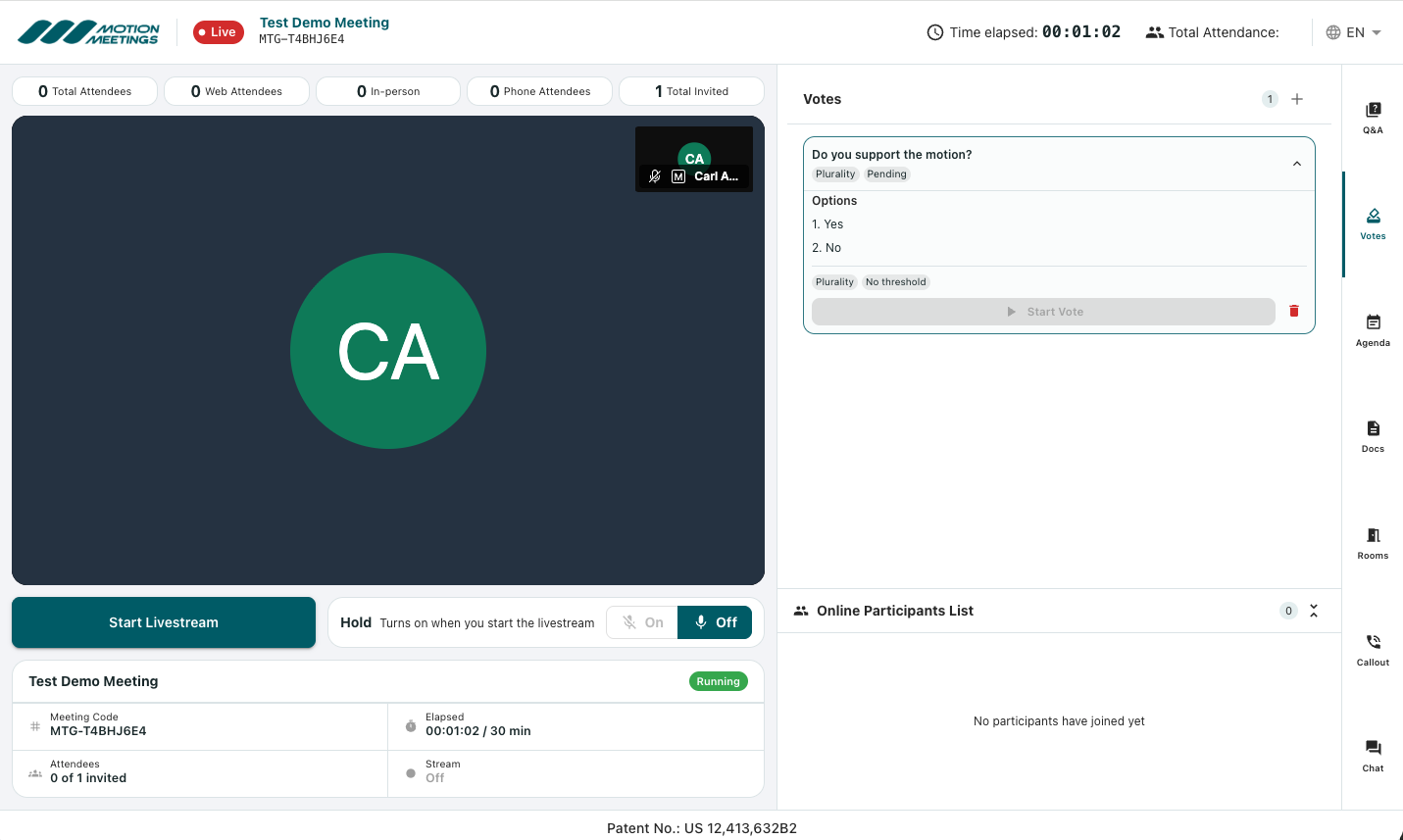
This article explains how to cast your vote during a Motion Meetings AGM — including what to expect when a vote opens, how to make your selections, and how to confirm your ballot has been submitted.
When a Vote Opens
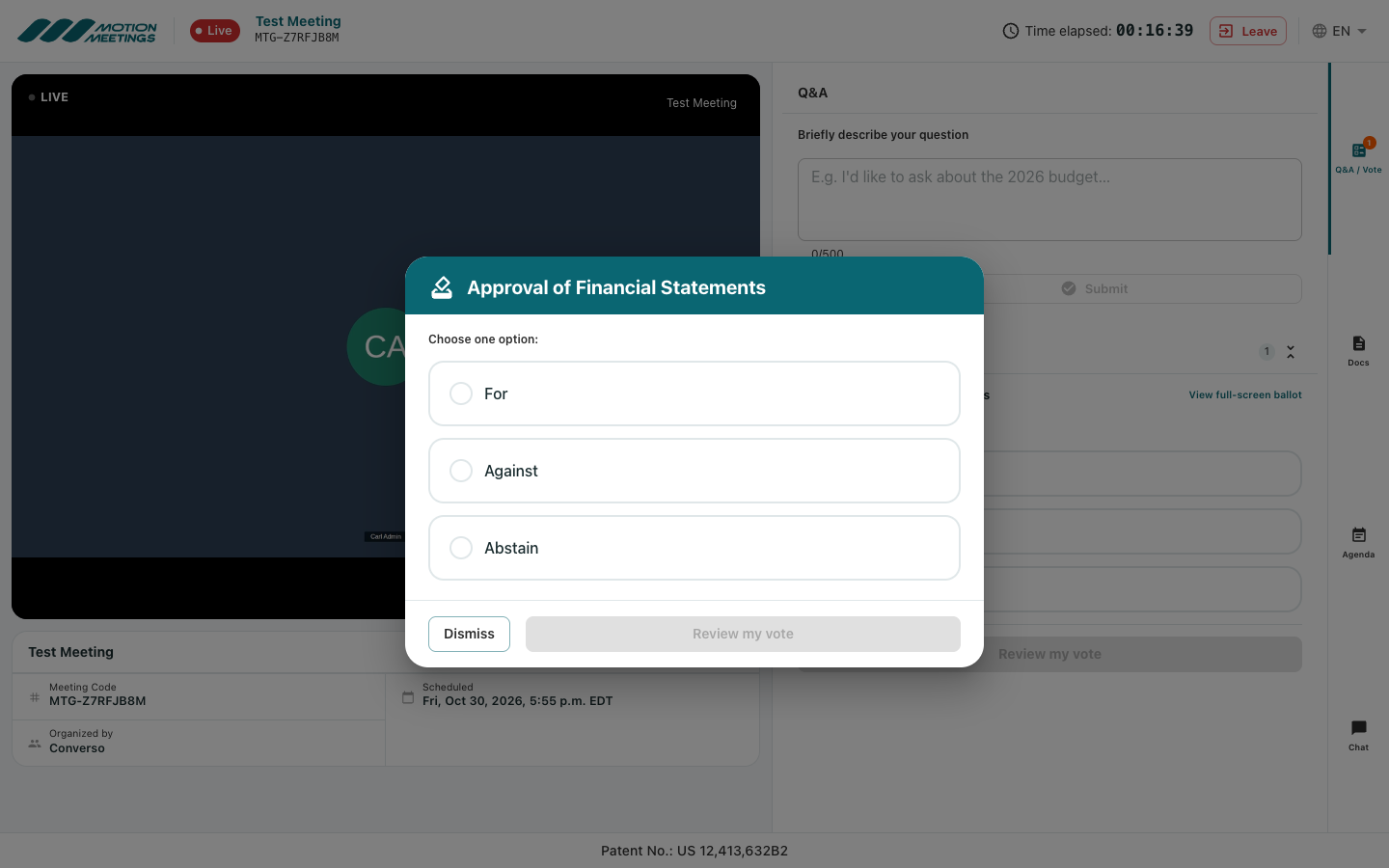
When the organizer opens a vote, a voting dialog appears automatically in the centre of your meeting interface — showing the vote title, the ballot options, and a Dismiss button if you want to vote later. You may also hear the organizer announce that voting is now open.
- You can vote directly from the dialog, or dismiss it and vote later from the Q&A / Vote panel on the right.
- The Vote section in the right-side panel keeps showing every open vote with its options, so you can return to it any time while voting is still open.
Casting a Plurality or Resolution Vote
Plurality votes (used for most resolutions, such as approving financial statements) are the simplest type:
- In the voting panel, read the resolution text carefully.
- Select one option: For, Against, or Abstain.
- Click Submit Vote.
- A confirmation screen appears: "Your vote has been recorded."
Casting a Multi-Position Election Vote
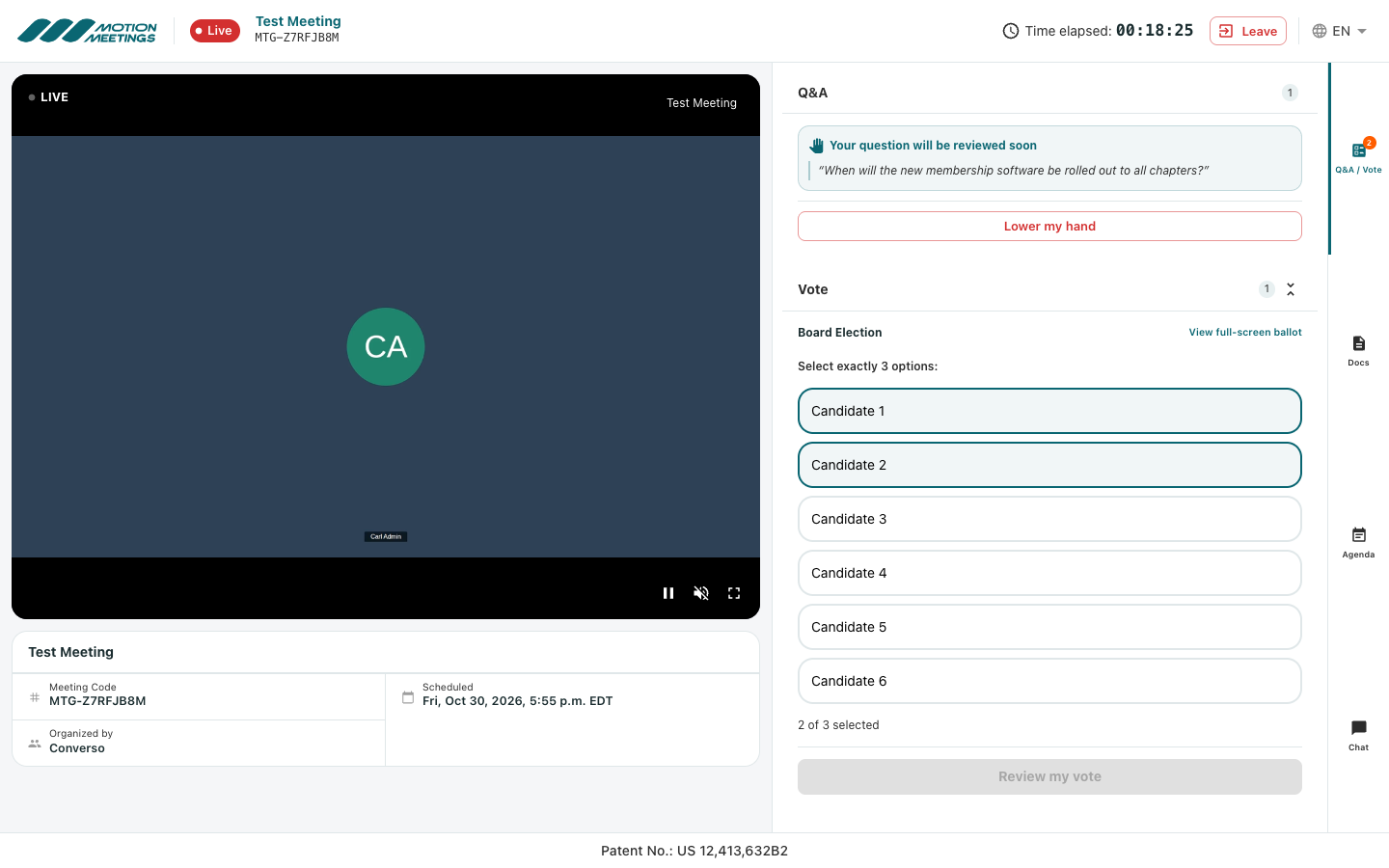
For board elections where multiple candidates are competing for multiple seats:
- Read each candidate's name and optional bio.
- Check the box next to each candidate you wish to vote for.
- The panel shows how many candidates you can select (e.g., "Select up to 3 candidates").
- Once you have made your selections, click Submit Vote.
Casting a Ranked-Choice (STV) Vote
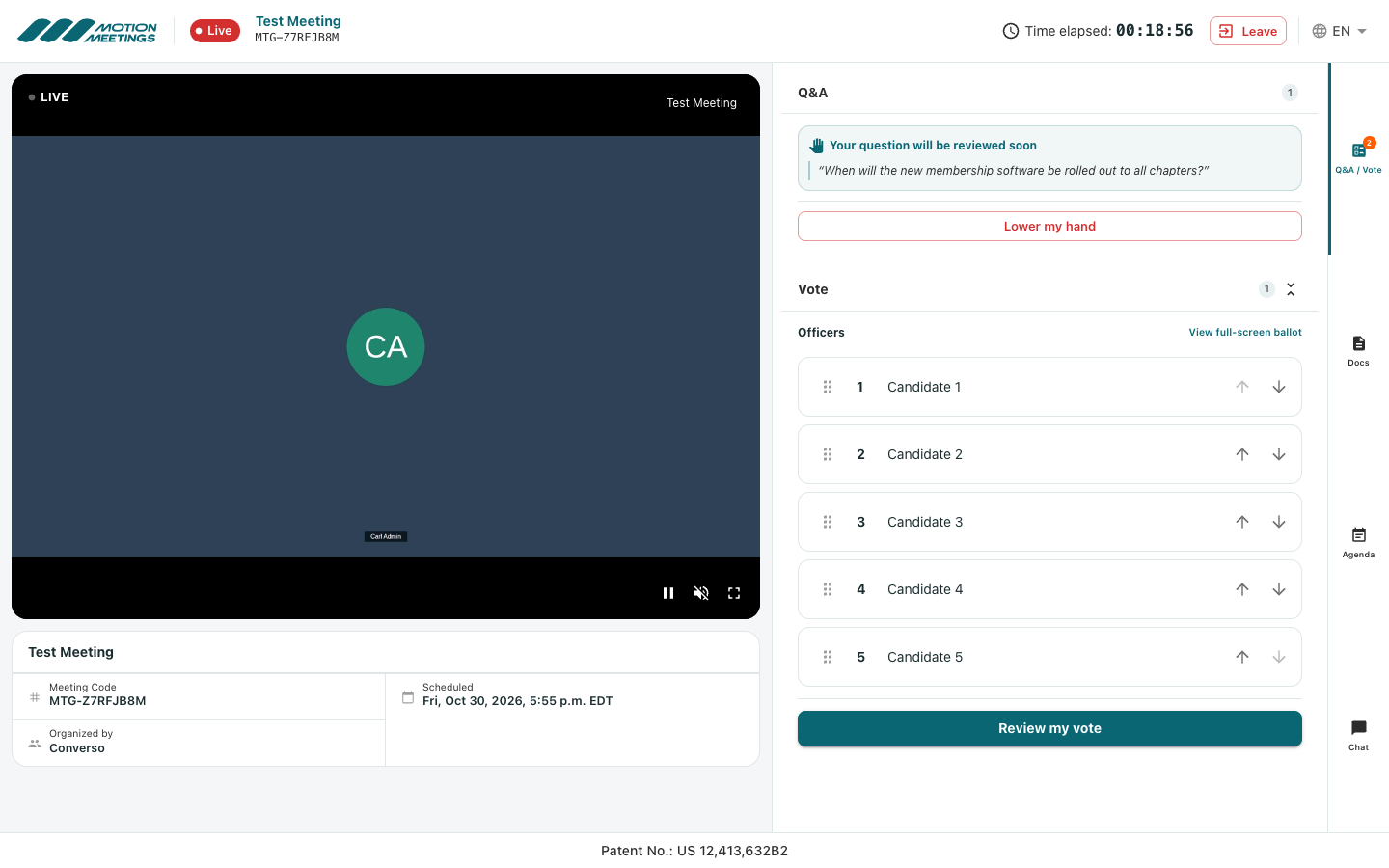
For Single Transferable Vote elections, you rank candidates in order of preference:
- Drag candidates up and down to set your preference order, or use the number dropdown next to each candidate (1 = your first preference).
- You do not have to rank all candidates — rank as many or as few as you like.
- Click Submit Ballot.
Confirming Your Vote Was Counted
After submitting your vote, you will see a confirmation screen and a receipt code. Keep this code — it can be used to verify your vote was included in the final tally without revealing who you voted for.
📝 Note
You cannot change your vote once it is submitted. If you accidentally submit the wrong choice, contact the meeting organizer immediately — they may be able to assist depending on whether the vote is still open.
If You Don't See a Voting Prompt
If you believe a vote is open but do not see a prompt:
- Click the Votes icon in the right-side toolbar to open the Votes panel manually.
- Refresh your browser if the panel does not load.
- Ensure you are connected to the meeting — if your connection dropped, rejoin using your magic link.
Was this article helpful?