
Uploading Documents
Uploading Documents
This article explains how to upload and manage the documents that participants can view during your meeting — including annual reports, financial statements, agendas, and presentation slides.
Supported File Formats
Motion Meetings accepts the following file types:
- PDF — Recommended for all formal documents
- DOCX — Microsoft Word documents
- PPTX — PowerPoint presentations
- XLSX — Excel spreadsheets
- TXT — Plain text files
- Images — JPG, PNG, GIF, WEBP
Maximum file size per document: 50 MB.
Uploading Documents
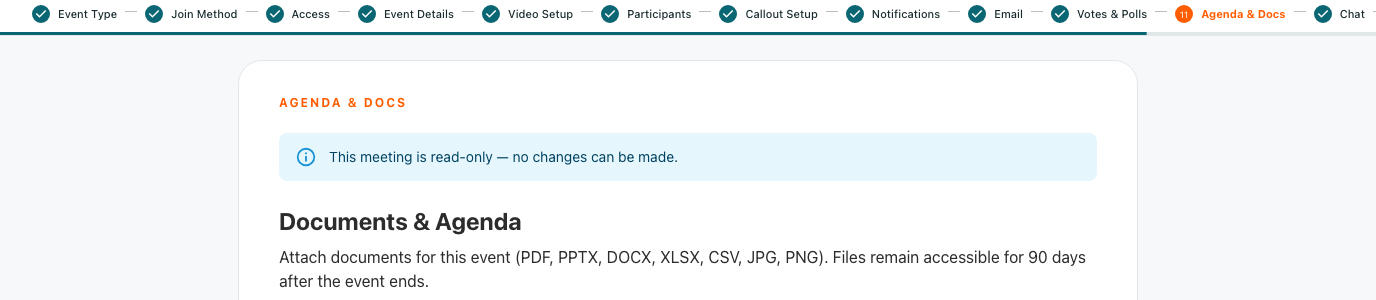
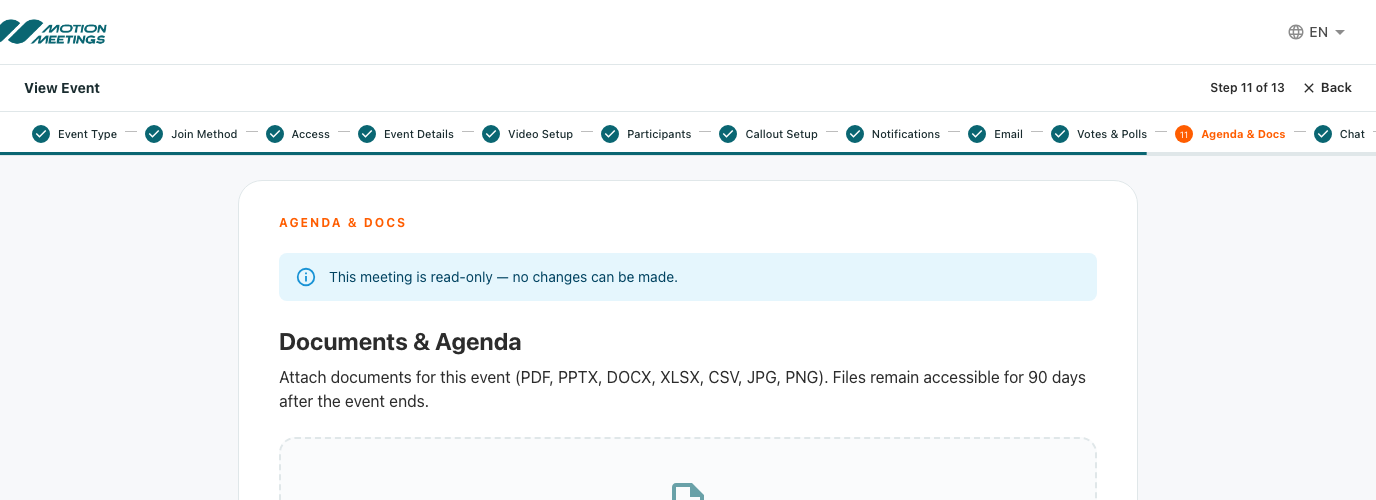
- In the meeting wizard, navigate to Step 11 (Agenda & Docs), or open the Documents tab from your meeting dashboard.
- Click Upload Document.
- Select a file from your computer or drag it into the upload area.
- Enter a Document Title — this is what participants see in the Documents panel.
- Optionally add a Description.
- Click Save.
📝 Note — document visibility
Every uploaded meeting document is visible to all roles in the meeting today — Attendees, Speakers, Guest Speakers, Selectors, and in-person participants all see the same Documents panel. Per-role visibility (e.g. "Speakers only") is tracked internally but not enforced; do not upload material you need to keep from attendees to this panel.
💡 Tip
Upload your annual report and financial statements as PDFs for the best participant experience. PDF documents render inline in the Documents panel without requiring a download.
Ordering Documents
Documents appear in the order you set. To reorder them, drag and drop the documents in the document list using the handle icon on the left of each row.
Replacing a Document
If you need to replace a document with a newer version:
- Click the three-dot menu (⋯) next to the document.
- Select Replace File.
- Upload the new file. The document title is preserved.
Removing a Document
- Click the three-dot menu next to the document.
- Select Delete.
- Confirm the deletion. This action cannot be undone.
Building the Meeting Agenda
In the same Documents & Agenda step, you can build your meeting agenda by adding agenda items. Each agenda item can optionally be linked to a document.
- Click Add Agenda Item.
- Enter the item title (e.g., "1. Call to Order").
- Optionally link a document or vote to this agenda item.
- Repeat for all agenda items.
- Drag items to reorder them.

📝 Note
During the live meeting, the Agenda panel lets you track progress through agenda items. Clicking an agenda item can automatically surface the linked document in the Documents panel for participants.
Was this article helpful?