
Running a Live Meeting
Running a Live Meeting
This article explains how to manage a Motion Meetings session in real time — from starting the meeting to closing it and everything in between.
Starting the Meeting
- From your meeting dashboard, click Start Meeting.
- You enter the organizer console — a full-screen interface with all the live meeting controls.
- Attendees who arrived early are automatically moved from the lobby (pre-start waiting screen) into the live meeting room. There is no per-participant admit queue — once you start the meeting, everyone with a valid link joins immediately.
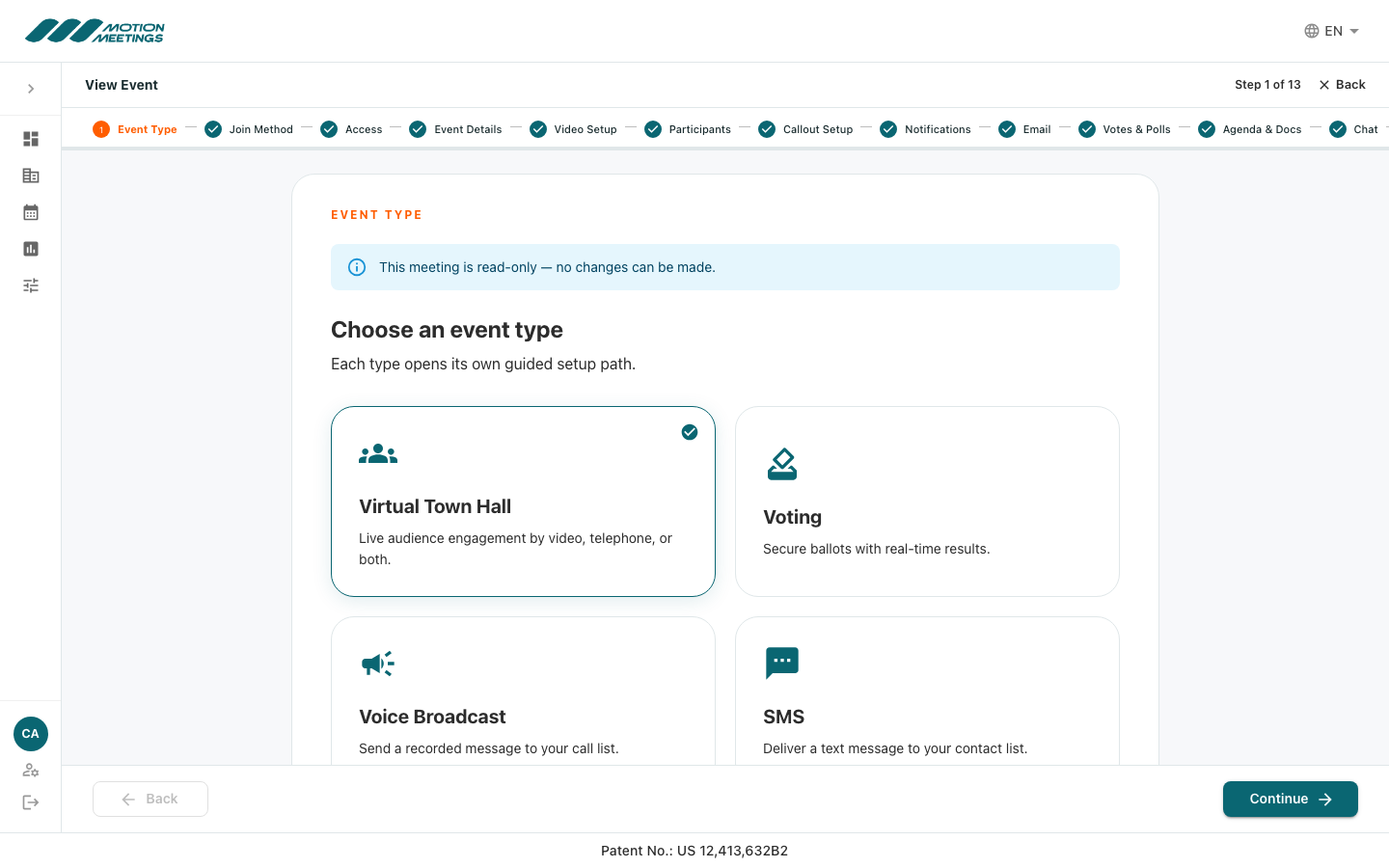
The Organizer Console
The organizer console has a panel toolbar on the right side. Click any icon to open the corresponding panel:
- Agenda — Track and advance through agenda items
- Chat — Send messages to all participants or to specific people
- Documents — Surface documents to participants
- Q&A — View submitted questions and manage the queue
- Votes — Open, monitor, and close elections
- Breakout Rooms — Create and launch small group rooms
- Participant List — See who is in the meeting, their status, and manage them
- Direct Conversations — Private messaging with individual participants (lives inside the Chat panel)
- Callout — Telephony meetings only. Monitor the live phone callout campaign (dialed, answered, voicemail, no-answer counters), pause or resume dialling, and retry failed calls.
Managing Agenda Items
- Open the Agenda panel.
- Click an agenda item to mark it as in progress. Participants see the current item highlighted in their own agenda view.
- Click Mark as Done to complete the item and advance to the next one.
Quorum Tracking
If quorum is enabled for your meeting, the status bar at the top of the console shows your current quorum status. Motion Meetings counts all connected participants (web and phone) toward quorum.
- A green indicator means quorum is met.
- A red indicator means quorum has not yet been reached or has been lost.
📝 Note
If quorum is lost during the meeting (participants drop off), you will receive an alert. You can pause the meeting or note the quorum loss in the meeting minutes as appropriate for your organization's rules.
Managing Participants Live
Open the Participant List panel to see all connected participants. From here you can:
- Mute or unmute a participant's microphone
- Turn off a participant's camera
- Move a participant to a breakout room
- Remove a participant from the meeting
- Send a direct message to a participant
Opening and Closing Votes
See Setting Up Elections and Ballots for full details on managing votes during the live meeting.
Meeting Hold
A Hold is a one-way pre-start state that keeps every non-admin muted while you finish getting ready — the livestream is on, participants are in the room, but nobody except the organizer and staff can speak.
- The Hold turns on automatically when you start the livestream. The status bar shows Hold: On.
- Attendees see a notice reading "The event is on hold — You are muted while the event is on hold."
- When you are ready to start the event, click End hold. Everyone can unmute from that point on.
- Once ended, the Hold cannot be turned back on — it is a one-shot pre-start device, not a general-purpose pause.
Ending the Meeting
- When the meeting is complete, click End Meeting in the top-right corner of the console.
- Confirm the action. All participants are disconnected and the meeting is marked as completed.
- You will be redirected to the meeting's post-meeting Reports page where recordings and vote results are available.
Was this article helpful?