
Reviewing and Queuing Questions
Reviewing and Queuing Questions
This article walks through how a Selector reviews submitted questions and decides which ones to surface to the speaker during a live meeting.
Joining the Screening Room
- Click your personal magic link from the invitation email.
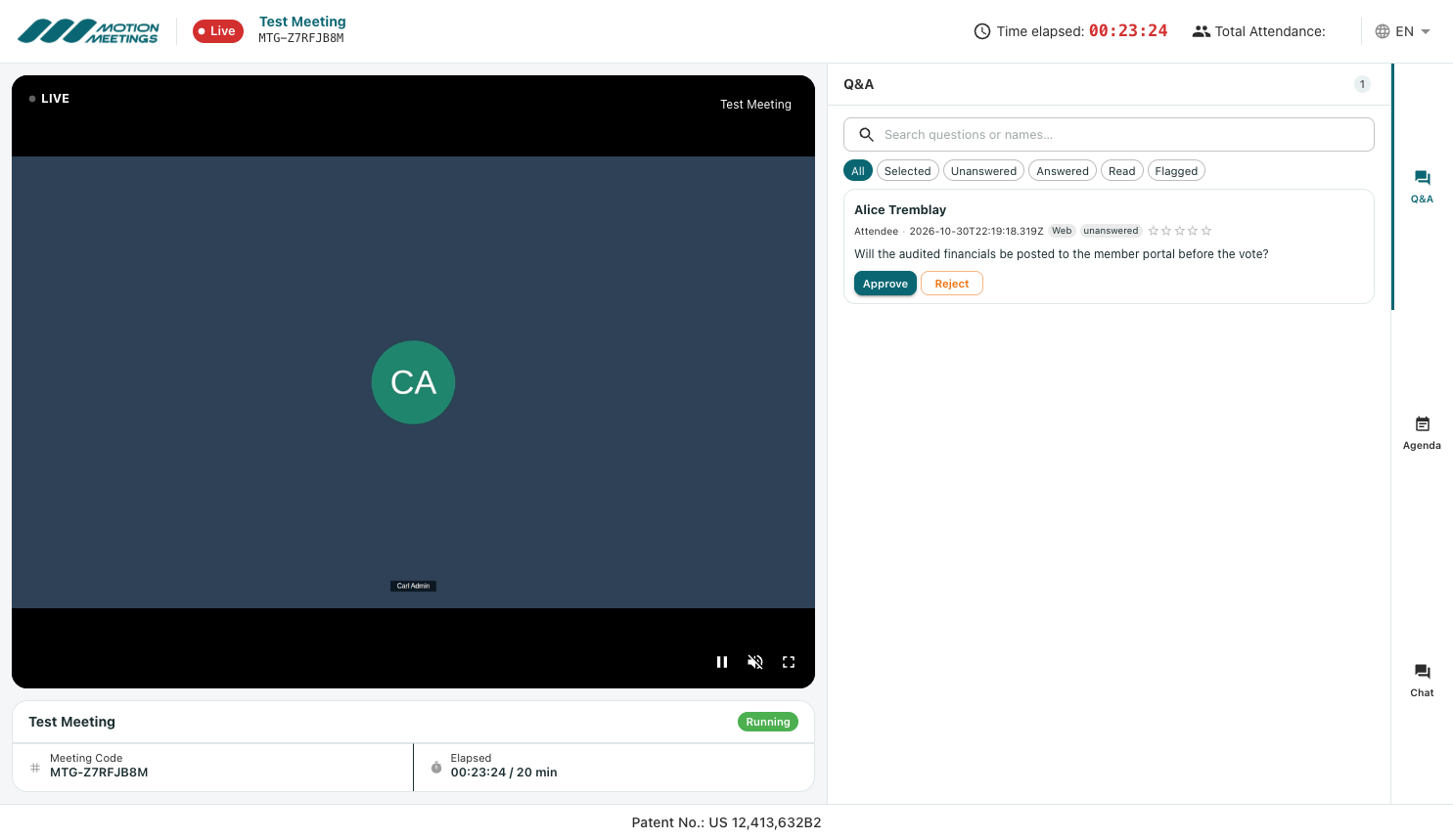
- You land in the Screening Room — a dedicated interface showing the question list and the speaker queue.
- Join before the meeting starts so you're ready when Q&A opens.
Reviewing the Question List
As participants submit questions during the meeting, they appear in the question list in real time. You see each question, the submitter's name (unless submitted anonymously), and the submission time.
Your job is to read through this list and decide which questions are worth surfacing to the speaker. Consider:
- Is this question relevant to what the speaker is currently discussing?
- Is it a question many participants likely share?
- Has the speaker already covered this topic?
- Is there a better moment in the agenda for this question?
Approving and Making a Question Live
- Find a question you want to surface.
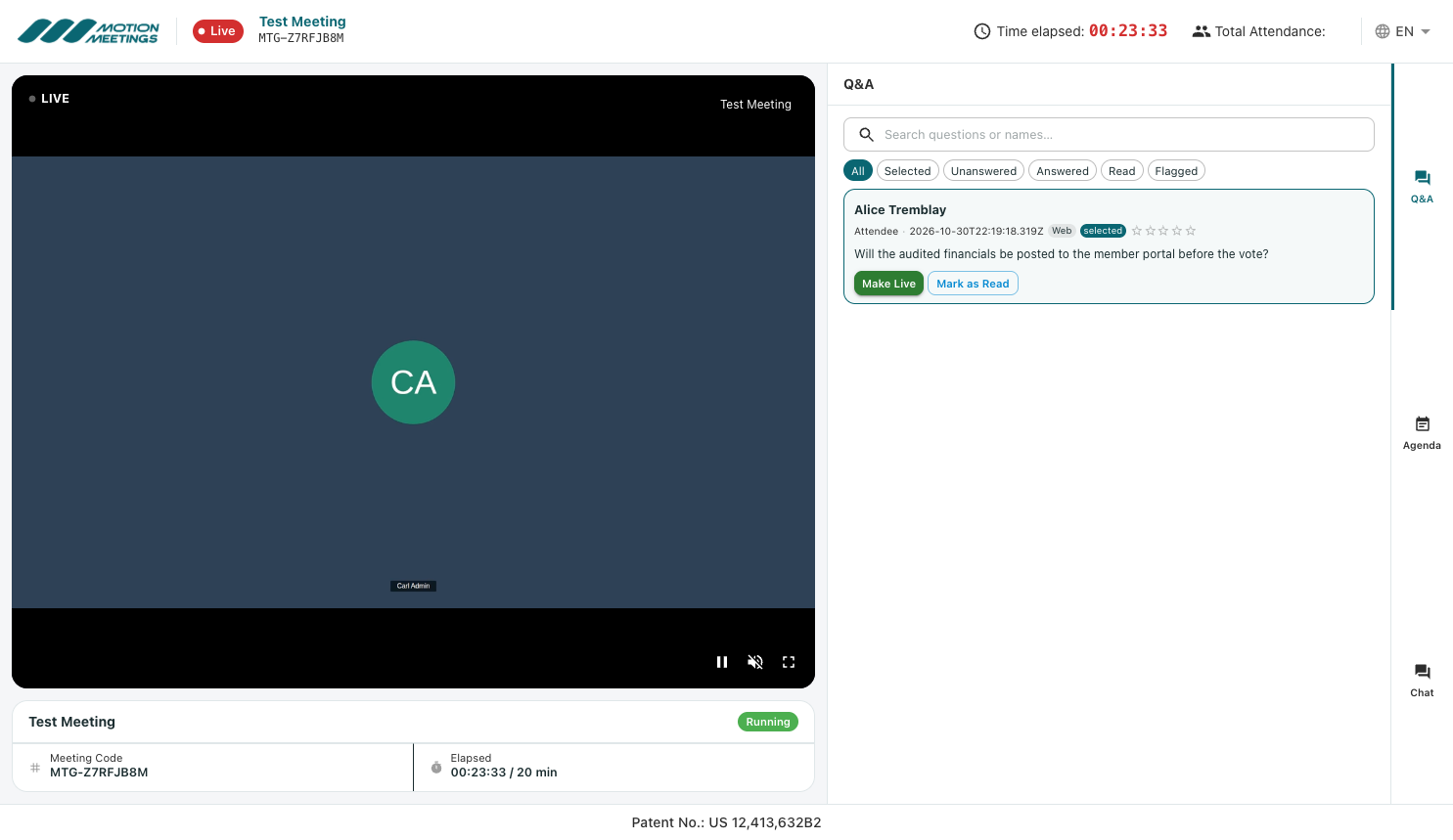
- Click Approve. The question's status flips to selected — it is now in the queue but not yet visible to the speaker.
- Click Make Live when you want the speaker to see and answer the question. It pushes immediately into the speaker's Q&A panel with an Answering badge.
- Alternatively, click Mark as Read on an approved question if the speaker has already touched on the topic and no live push is needed.
- Use the 1–5 star rating on each card to flag priority for your co-Selectors.
💡 Tip
Keep 2–3 questions in the speaker queue at all times — the speaker always has something to move to next without a gap. Don't flood the queue; too many at once is disorienting.
Managing Similar Questions
When many participants ask the same thing in different ways, pick the best-phrased version and queue that one. You can leave the others in the list — they don't go to the speaker unless you queue them.
Tracking Question Status
Each question has a visible status badge:
- Submitted — In the list, not yet queued
- Queued — Sent to the speaker's panel
- Answered — Speaker has addressed it
Was this article helpful?